
Pouring Water
Video to SFX: AI Sound Effects That Match Your Video
Upload a clip and our video to SFX tool adds footsteps, impacts and ambience timed to the action. No sound library, no timeline work.
Estimated: 10 credits · 1 credit / second, rounded up. Get credits
Explore video examples
What Is Video to SFX?
Video to SFX is AI that watches your footage and creates the sound effects that belong in it.
Video to SFX turns a silent or badly mixed video into a finished soundtrack. The AI reads your footage, finds the actions on screen, and generates effects, foley and ambience that land on those actions.
Without it, you search a library, download clips, and line each one up by hand. With video to SFX, you upload the video, add an optional prompt, and get a mixed track back. It works as an AI video to sound effect tool and as an AI sound effect generator from video.
People search for this job in different ways: add sound to video AI, video to sound effects, or video to audio AI. They all mean the same thing. You give the tool a video and it gives you sound that fits. Video to SFX focuses on effects, foley and ambience, not on music or voice.
SFX Reel also generates from text. This page covers the video side.
Video to SFX Key Features
Six things the video to SFX tool does so you can add sound effects to video without a timeline.
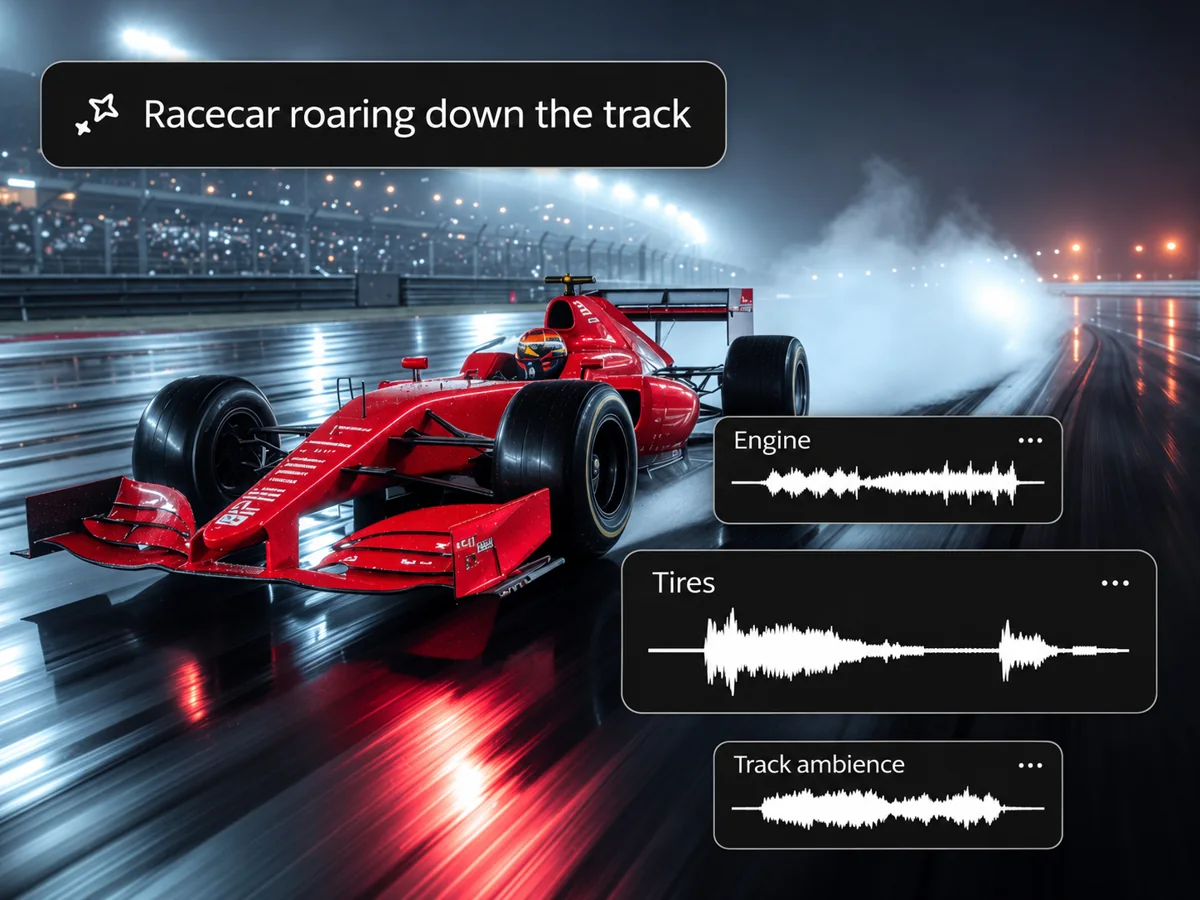
Sound synced to the action
Video to SFX reads motion, cuts and timing in your clip. Footsteps land on the step, impacts land on the hit, and ambience follows the scene. It can generate sound effects from video in one pass, so you do not place each sound yourself.
Keeps your dialogue
Keep original speech is selected by default. If your video has speech, this setting tells the video to SFX tool to keep it in the mix alongside the new effects.
Generate effects without background music
Many AI video tools add background music you did not ask for. Generate a new track of video sound effects and use the sounds-to-exclude field to ask for a result without music.
Ambience across cuts
Upload an edited sequence as one clip and generate foley and ambience for the whole scene. Preview the result to hear how the room tone carries across cuts.
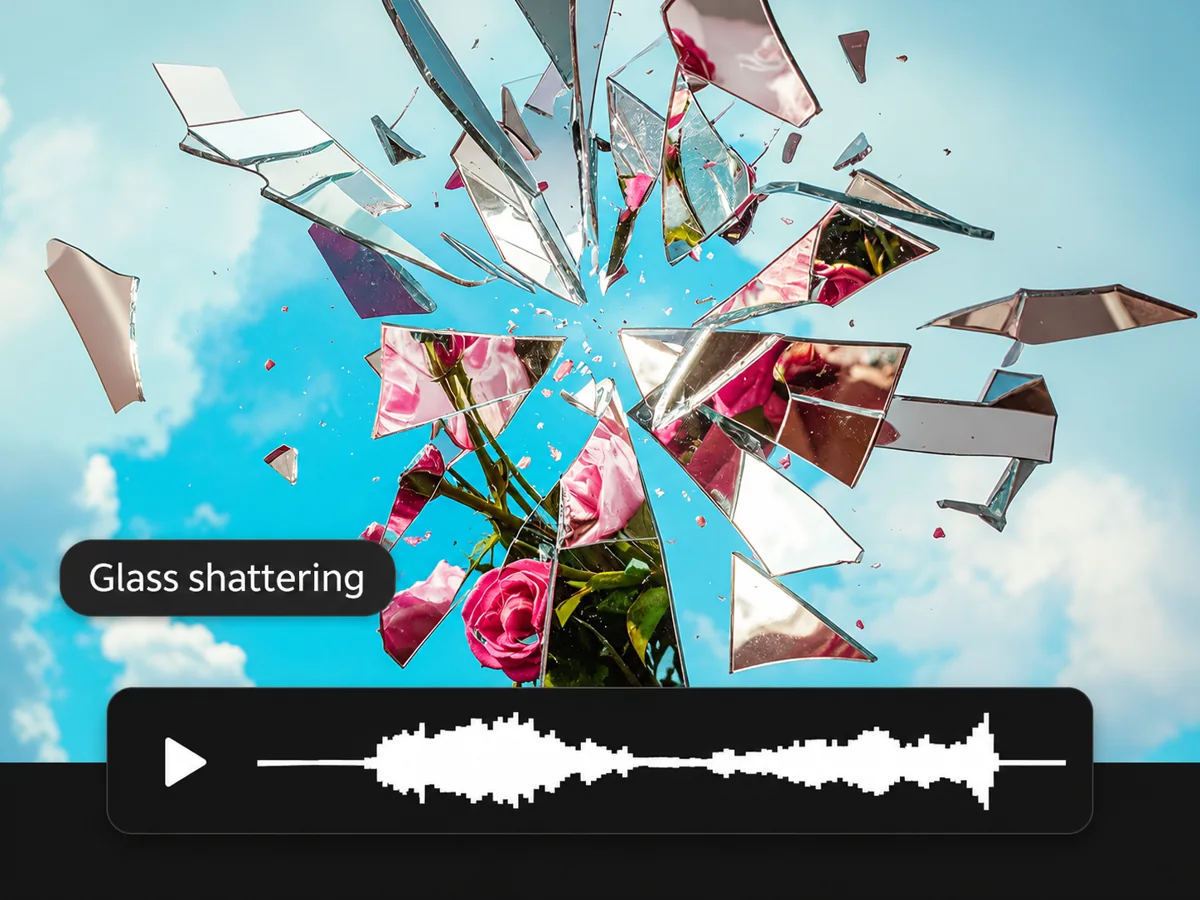
Steer it with a prompt
Add a short prompt to ask for certain sounds. Add a negative prompt to leave sounds out. You stay in charge of the result without opening an editor.
Clips up to 10 minutes
Upload an MP4 or WebM from 1 second up to 600 seconds. Longer videos can be split and processed in parts, so a full scene is not a problem.
What Can You Create With Video to SFX?
Footsteps, impacts, ambience and foley, placed on your video in one pass.
Footsteps and movement
Steps on gravel, wood or tile, cloth rustle, and the sounds of a body moving through a scene. These are AI sound effects for video, made for the exact clip you upload.
Impacts and hits
Doors, crashes, punches and objects landing, timed to the frame where they happen. You hear the hit when you see it.
Ambience and room tone
Wind, traffic, crowds, rooms and water that fill the space behind the action. Quiet scenes stop sounding empty.
Sound for silent or AI-made video
Add sound to AI video clips that came out silent, or add audio to AI video that needs different sound. Video to SFX works on the finished file.
Who Is Video to SFX Built For?
People who finish a video and find it has no sound, or the wrong sound.
For short-form creators
You cut a Reel, Short or TikTok and need sound before you post. Upload it, get effects back, and move on to the next one. You can auto add sound effects to video before every post and only fix what you do not like.
For AI video makers
Your video model gave you a silent clip or music you did not want. Video to SFX adds sound to the AI video without regenerating it. It also works when you want to add audio to AI video made with several different models.
For film and video editors
Use video to SFX for a first pass of foley and ambience, then refine in your editor. You start with a full track instead of an empty timeline.
For game and ad teams
Trailers, gameplay clips and ad cuts all need sound that fits the picture. Upload the cut and get a version to review.
Video to SFX vs Adding Sound by Hand
When the AI saves you time, and when picking each sound yourself is still better.
| Workflow | Video to SFX | By hand (library + editor) |
|---|---|---|
| Starting point | Your video | An empty timeline |
| Finding sounds | The AI creates them | You search and download |
| Timing | Placed on the action for you | You line up every sound |
| Control over each sound | Prompt and negative prompt | Exact, sound by sound |
| Cost | $0.10 per second of video | Depends on your library |
| Best for | A fast first pass | A final mix you control |
Pick video to SFX when you need sound on many clips quickly. Pick the manual route when you need one specific sound or full control of the mix. Many people do both: generate a first pass, then fix a few moments by hand.
If you only need to add sound effects to video once, the manual way can make sense if you already have the sounds you need. If you do it every week, video to SFX can save time.
Where the manual route wins today: you can pick a recording you already know, and you do not spend credits on every try.
How To Use Video to SFX
How to add sound effects to a video in three steps: upload, generate, download.
Upload your video
Open Video to SFX in the generator and upload an MP4 or WebM. Set the processing length from 1 to 600 seconds. Add a short prompt if you want to steer the sound.
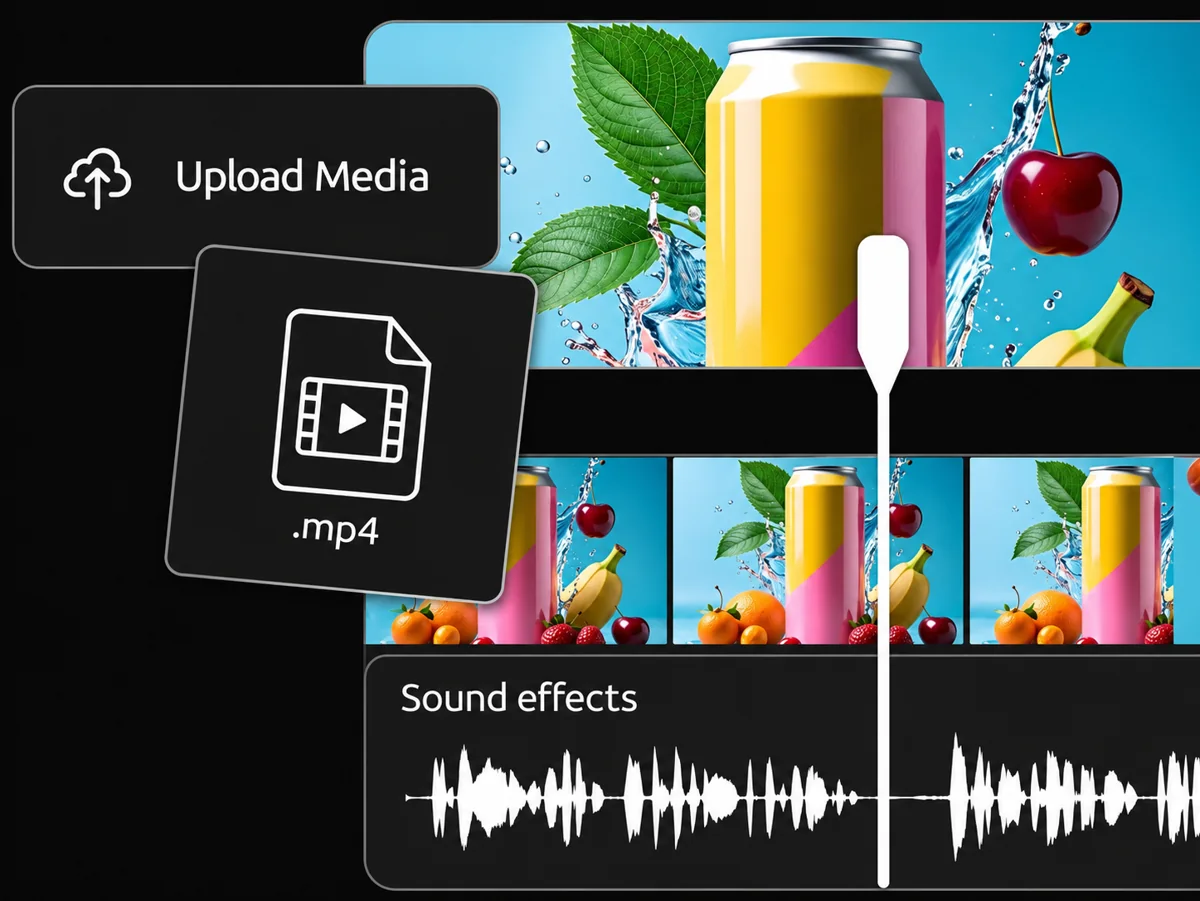
Generate your sound effects
Click Start. The video to SFX tool reads the footage and adds effects that match the action. Use a negative prompt to leave out sounds you do not want.
Preview and download
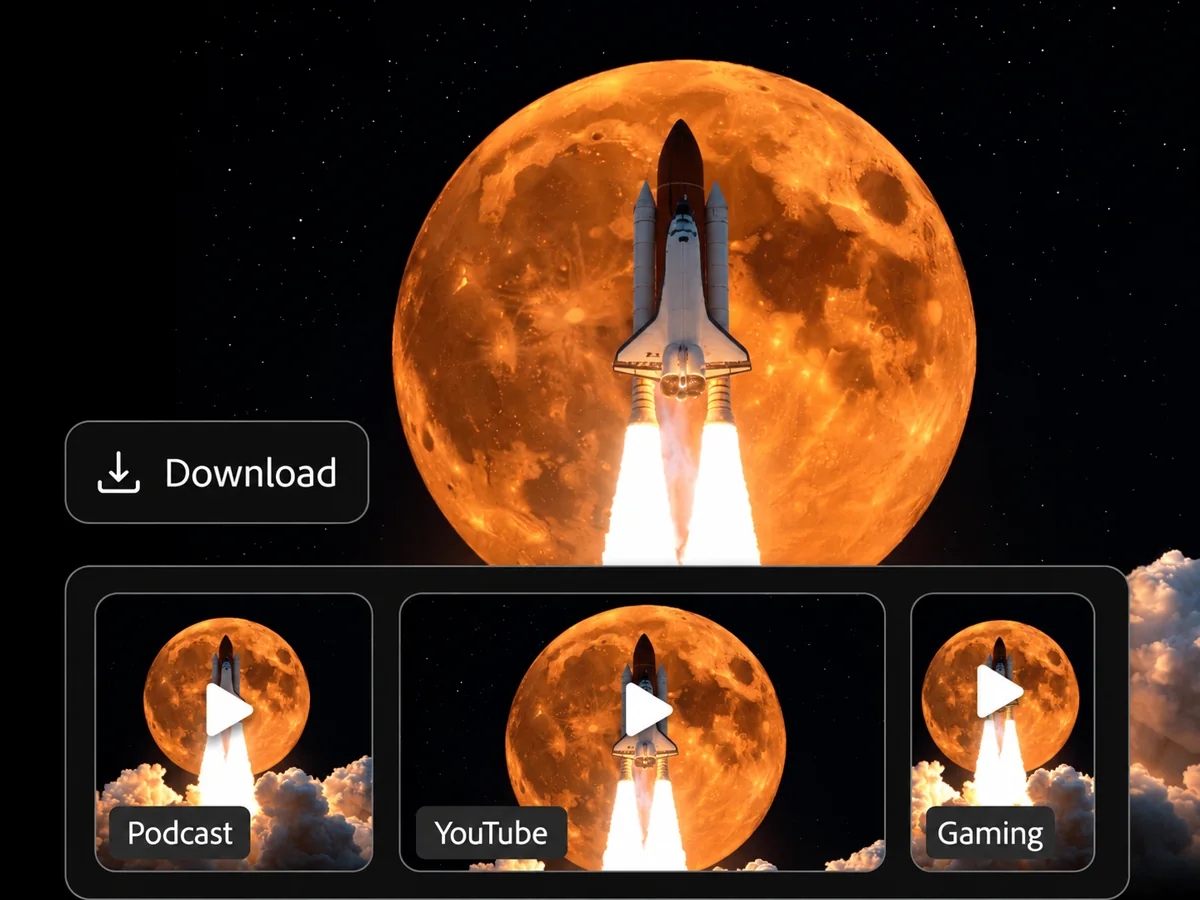
Play the result next to your original with Video with sound. If it needs a change, adjust the prompt and generate again. Then download the file for your edit. For a separate track, choose Audio only and select WAV, MP3, AAC or FLAC.
Tip: describe the material and the place, such as "boots on wet gravel, wind". Try a short clip first to hear how the video to SFX tool responds.
Name the sounds you want left out, such as "no music". If the first result is close, change one detail in the prompt instead of rewriting all of it. A material and a place are usually enough to start.
Video to SFX Pricing
You pay in credits, one credit per second of video, rounded up. Credits come in packs.
One-time purchase
Starter
$9.9one time
99 credits
Up to 1 min 39 sec of audio99 seconds total at 1 credit per second.About 9 × 10-second sound effects.
- Video to SFX
- Text to SFX
- No recurring subscription
One-time purchase
Plus
$29.9one time
299 credits
Up to 4 min 59 sec of audio299 seconds total at 1 credit per second.About 29 × 10-second sound effects.
- Video to SFX
- Text to SFX
- No recurring subscription
One-time purchase
Professional
$99.9one time
999 credits
Up to 16 min 39 sec of audio999 seconds total at 1 credit per second.About 99 × 10-second sound effects.
- Video to SFX
- Text to SFX
- No recurring subscription
Prices in USD. Audio duration is the total across generations, not a per-file limit. Each generation is billed in whole seconds, rounded up.
Every pack costs $0.10 per second of video. A 30-second clip uses 30 credits, which is $3. A 60-second clip uses 60 credits, which is $6.
If you add sound to video AI clips in batches, buy a larger pack. The price per second stays the same, so you only choose how many seconds to buy at once.
Video to SFX is included in every pack.
Video to SFX FAQ
The most common questions about video to SFX, answered.
How does video to SFX work?
Video to SFX reads your footage, finds the actions and the setting, and generates sound effects that match them.
You upload a video and, if you like, a short prompt. The tool returns a mixed track timed to the picture. You can listen, change the prompt, and generate again until it fits.
Can I use video to SFX to add sound to an AI video?
Yes. Upload the clip your AI video tool made and video to SFX adds sound to the AI video, whether it came out silent or with music you did not want.
Generate a new soundtrack for the existing video. If you joined several AI clips, you can upload the edited sequence as a single file.
Is there an online video to SFX converter or AI generator?
Yes. SFX Reel is a video to SFX converter that runs in your browser. Upload a video and the generator returns a version with sound effects added.
The same page works as a video to SFX AI generator when you add a prompt. You can auto add sound effects to video, then review the result instead of building it from scratch.
Does video to SFX keep the dialogue in my video?
The generator has a Keep original speech option that is selected by default. Leave it on when you want the new effects mixed with the speech from your video.
How much does video to SFX cost?
SFX Reel sells credits in packs, from $9.9 for 99 credits.
One credit pays for one second of video, so the Starter pack covers 99 seconds. Video to SFX is included in every pack, so you do not need a separate plan for it.
How long can the video be, and which files work?
Video to SFX accepts MP4 and WebM files from 1 second up to 600 seconds, which is 10 minutes.
For a longer video, cut it into parts and upload each one. Each part uses credits for its own length.
Can I use the sound effects in videos I sell or post?
Contact SFX Reel support to confirm commercial use and attribution terms for your project before publishing.
What if the video to SFX result is not right?
Change the prompt and generate again. Name what is missing, such as "add rain", or add a negative prompt to remove what you do not want.
Each new generation uses credits for the processed length, so try a short clip first.
How is video to SFX different from text to sound effect?
Video to SFX starts from your footage and places sounds on the action. Text to sound effect starts from a written description and makes one sound.
Use video to SFX when you have a clip and want it scored. Use text to sound effect when you need a single sound for an edit. Both are in SFX Reel.
Try Video to SFX on Your Own Clip
Upload a video and hear the result next to your original.