
Thunderstorm
Thunderstorm
Try this promptDescribe a sound to generate an audio clip you can preview and download for your next project.
Estimated: 10 credits · 1 credit / second, rounded up. Get credits








Text to SFX turns a written description into a standalone audio file you can place wherever it belongs in your project.
Start with the thing making the sound and what it does. Include the surface or space if it changes what you want to hear. “A steel latch snapping shut inside a quiet stairwell” gives the text to sound effect generator a material, an action, and a setting to work with.
Text to SFX generates a separate clip from that description. You choose the length, listen to the result, then take the downloaded audio into your editor. Place it under a cut, attach it to a game interaction, or layer it with sound you already recorded.
An AI sound effect generator from text also comes in handy before the picture is ready. You can make a scratch sound for a storyboard, listen to how it feels against a rough edit, and refine the prompt when you know what the scene needs.
Set a length from 0.1 to 600 seconds, add an optional negative prompt, and export WAV, MP3, AAC, or FLAC.
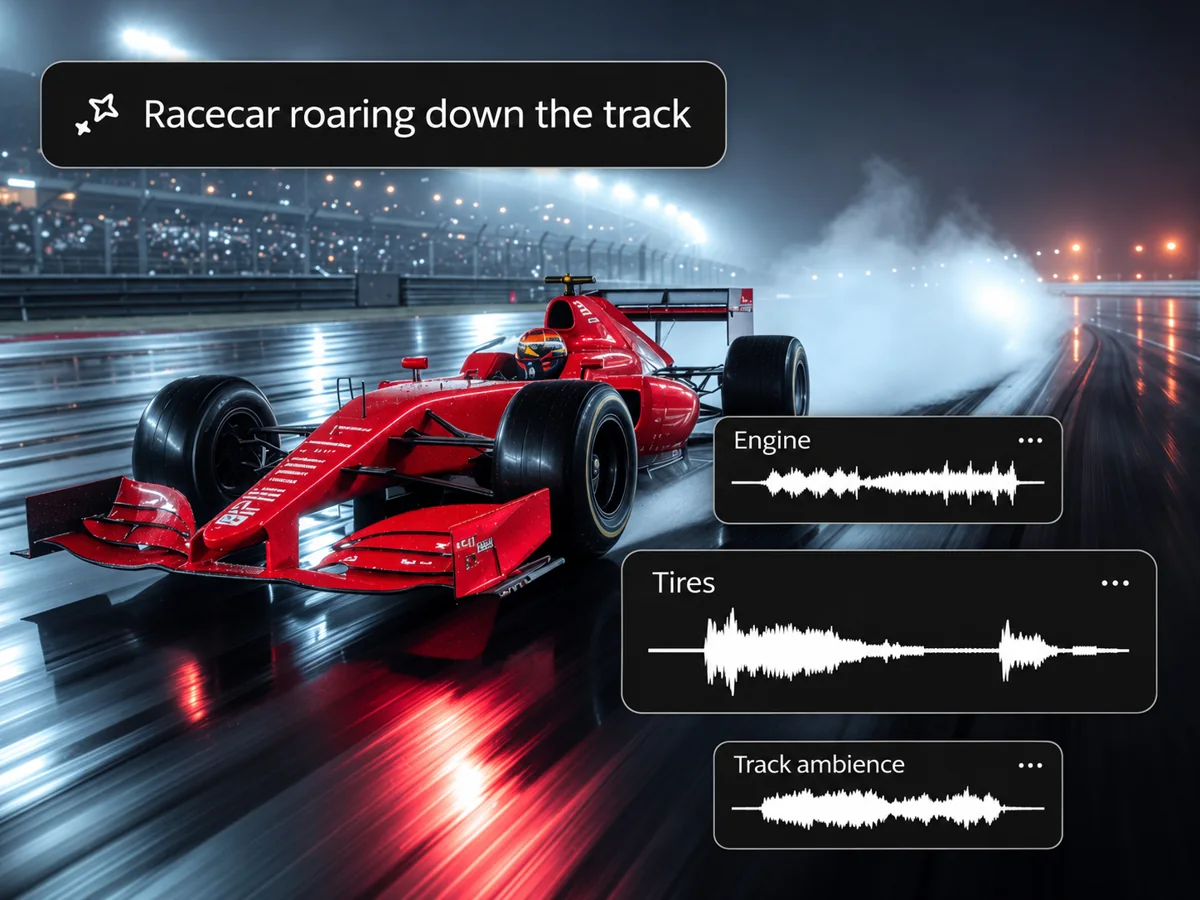
In Text to SFX, use Length to give a quick button click a short slot or make a longer bed of room tone. Choose the duration you want before starting the generation. The creator shows estimated credits alongside the input, so you can see how much the chosen length will use.
Describe the sound's source, pace, and surroundings in the main field. In Generation settings, use Sounds to exclude to name anything you want left out, such as background music or voices. You can adjust either description after listening to the first result.

Play the generated clip in the Text to SFX creator and listen through the ending. Set the audio format before generation. WAV is a practical choice for continued editing, while MP3 can suit a small preview you plan to send around. AAC and FLAC are available when your workflow calls for them.
Text to SFX lets you set an optional seed under Generation settings. Keep the seed and other settings the same when comparing a small prompt edit. Leave the seed field empty when you want to start with a random seed.
Make footsteps on gravel, a quick transition whoosh, a game menu click, or a stretch of rain against a window.
Try Text to SFX for close-up sounds that carry a scene, like a brass key scraping inside a lock, soles on wet gravel, or a leather bag dropping onto a chair. Mention the surface and how close you want the sound to feel.
Use the text to SFX generator for a metal hit, a heavy drawer slam, or a fast whoosh for a transition. Describe the start and ending so the sound fits the cut, such as a short click followed by a faint rattle.
Make brief feedback for a button press, a pickup, or a menu that opens. Separate cues can help players distinguish a successful action from a warning. Try a light chime for confirmation and a lower, shorter cue for an error.
Generate steady rain on an awning, a low workshop hum, or wind brushing dry grass. Set the length to cover the stretch of footage or gameplay that needs a background layer. Listen for any distracting sound before bringing the clip into the mix.
Make custom sound effects for video edits, game menus, podcasts, and motion graphics.
If you need an AI sound effect generator for video, start with the moment you want to emphasize. Use Text to SFX to make a click for a graphic reveal or an impact for a cut, then position the downloaded clip in your timeline.
An AI sound effect generator for games can help you sketch a set of interface cues while the game is still in development. Generate individual sounds for actions such as opening inventory, collecting an item, or confirming a choice. Try each cue in context with the rest of the game's audio.
Use Text to SFX to put a scene change into a story or fill a quiet stretch with room ambience. Listen with the voice track playing and adjust the level during your edit. A short sound with a clean ending can be easier to place under speech.
Generate a sound from a prompt and place it by hand, or upload a video to match effects to the action.
| What you need | Text to SFX | Video to SFX |
|---|---|---|
| Starting point | A written description of the sound | Video footage, with an optional text prompt |
| Result | A standalone audio clip | A separate audio track or a video with sound |
| Timing | Place the clip in your editor | Generate effects that follow the action in the footage |
| A common task | Make a short cue you can reuse across scenes | Give one scene a soundtrack timed to its picture |
Choose Text to SFX when you're making one piece of a mix. A door latch, a beep, or a single gust of wind can become its own audio file. You decide where it starts and how loud it should be against your other tracks.
When your source footage already shows several actions and you want effects that follow them, open Video to SFX. Upload the scene, choose the output, and preview how the generated sound follows what happens on screen.
Describe the source, action, and setting, choose a length, then generate, preview, and download the clip.
Open Text to SFX and describe the source, the action, and the place. For example, ask for “a single dry twig snapping under a boot on a quiet trail.” Use one clear action when you want an isolated cue.
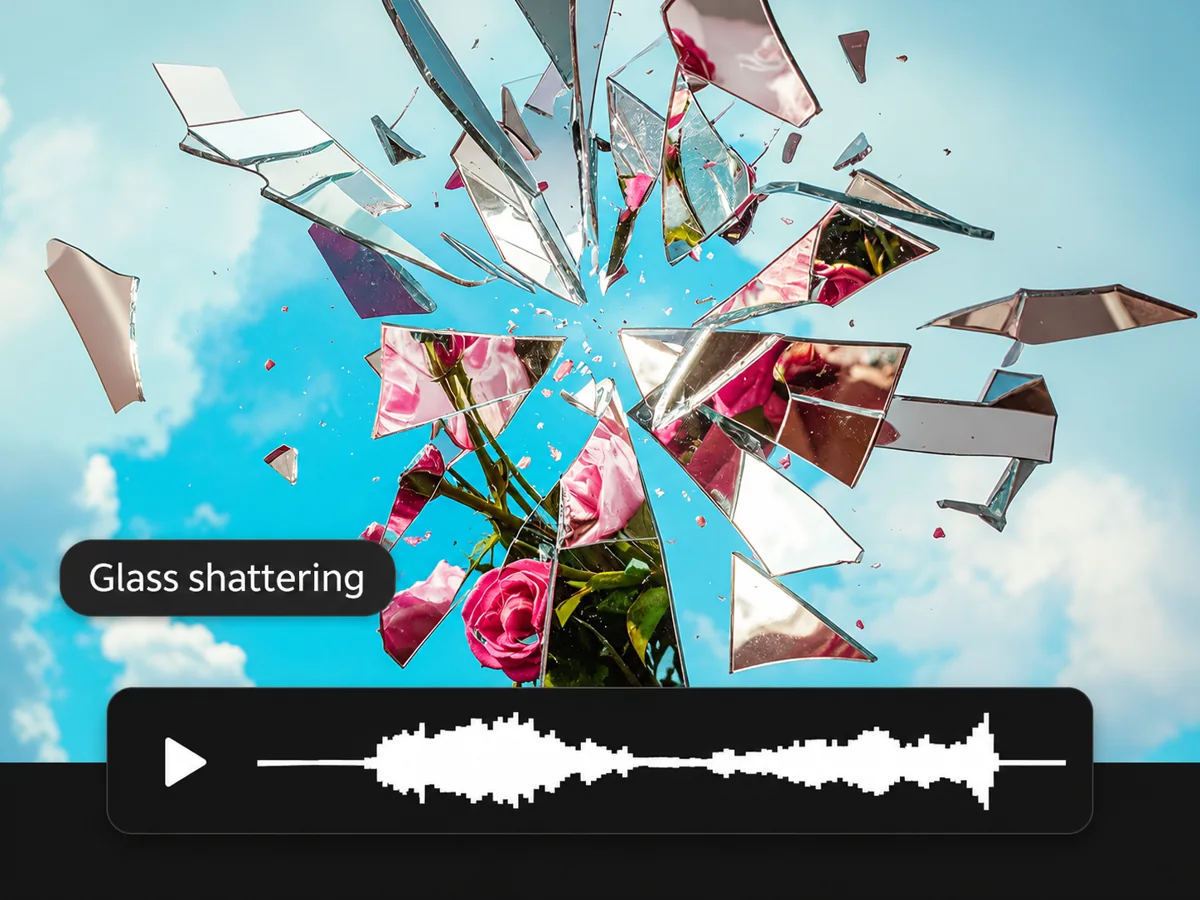
Set Length to the time you need and check the credit estimate. Open Generation settings to select the format or add sounds you want to exclude.
The creator shows the task status while Text to SFX generates your clip. If status checking pauses, use Check status again to retrieve the existing task.
Play the audio and check the attack, the level of detail, and how it ends. Download the take you want to use. Place it in your project and adjust the clip's position or volume to suit the scene.
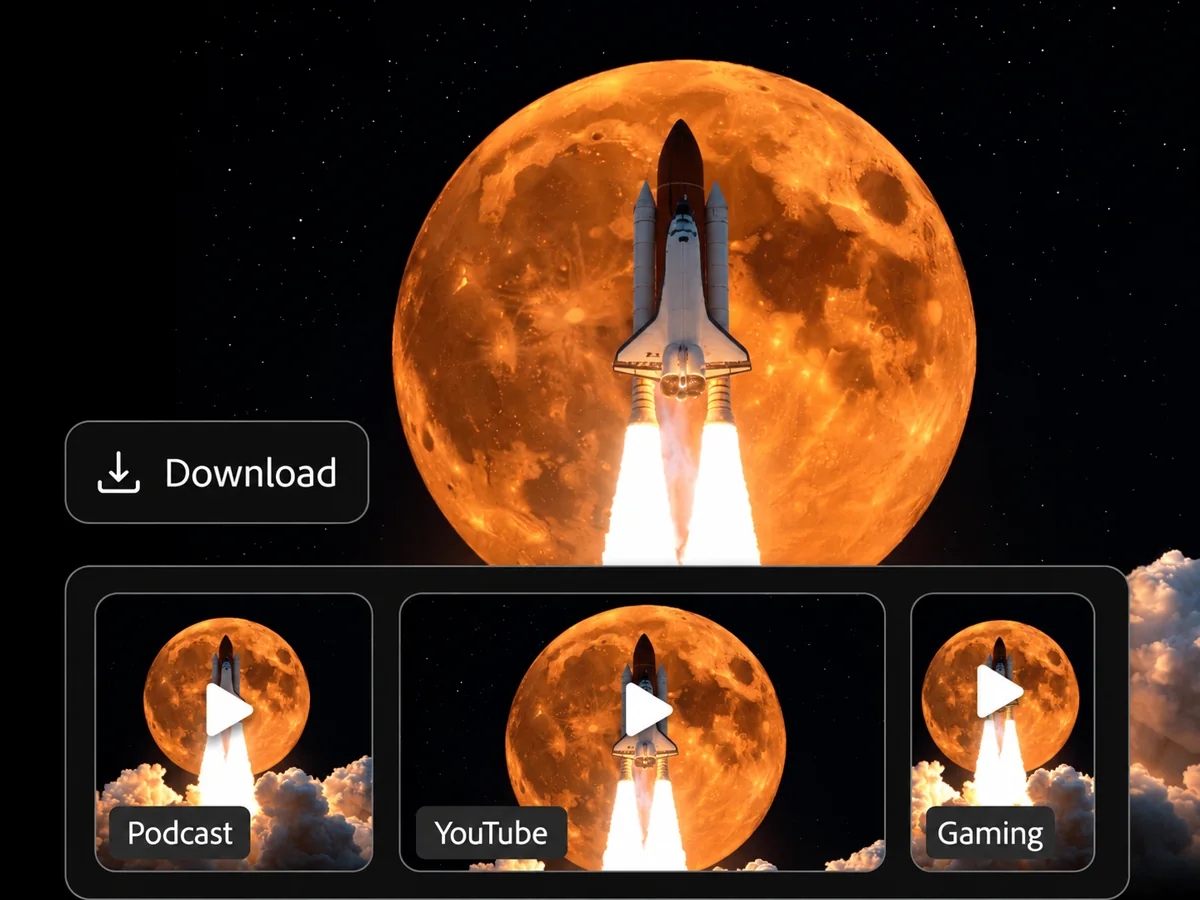
If you are learning how to generate sound effects with AI, run a short test first. After listening, try changing one detail in the prompt so you can hear what that edit does to the next take.
Pay one credit per second, rounded up, with one-time packs starting at $9.90 for 99 credits.
One-time purchase
99 credits
One-time purchase
299 credits
One-time purchase
999 credits
Prices in USD. Audio duration is the total across generations, not a per-file limit. Each generation is billed in whole seconds, rounded up.
Each Text to SFX generation is rounded up to a whole second, with a minimum of one credit. For example, a 2.4-second cue uses 3 credits. A 30-second room tone uses 30 credits, equivalent to $3 at the listed pack prices. Count each new take separately when you estimate how much a project will use.
All three packs use the same per-credit rate. Choose a pack based on the total amount of audio you expect to make. The same credit balance works with Text to SFX and Video to SFX. View credit packs
Find answers about prompt wording, clip length, supported audio formats, and credit use.
A Text to SFX prompt should name the sound source, the action, and any setting that changes what you want to hear. For a short prop sound, try “an empty ceramic mug tapping a stone counter, close up, with a short ring.” Add pace or intensity if it matters to the scene. Keep the wording focused on sounds you expect to hear in the result. Use Sounds to exclude for sounds you want the generator to leave out. Set the requested length separately with the Length control.
Text to SFX supports a requested length from 0.1 to 600 seconds. Choose a short duration for a button tap, a longer one for steady background ambience, or a length that matches an available slot in your edit. The estimate in the creator updates with the selected duration. Every generation uses at least one credit, which also applies to subsecond clips. For a scene that uses a few different sound cues, generate them as separate files so you can place and adjust each cue in your editor.
Text to SFX offers WAV, MP3, AAC, and FLAC. Choose the format in Generation settings before clicking Start. Use WAV when you plan to keep editing the clip in an audio or video editor. MP3 can work for a preview you'd like to share as a small file. If you are working inside a game engine or delivering to someone else's project, follow that project's required format. Play the result in the creator to check the sound before downloading your file.
Text to SFX uses one credit per second and rounds each generation up to a whole second. A requested length of 3.2 seconds uses 4 credits, and a 0.5-second cue uses one. If you make three separate 3.2-second takes, budget 12 credits. The creator displays an estimate for your current settings before you click Start. Credits come in one-time packs. For a longer job, estimate the total length and how many variations you'll want, then compare it with the pack sizes on the pricing page.
Text to SFX generates a separate audio clip that you can place in your video editor. This is useful when you want a particular effect, such as one floorboard creak under a close-up, and you want to choose the exact moment it plays. Adjust the clip's timing and level against the rest of the mix after you import it. If you want a generation based on the timing of actions already visible in your footage, use Video to SFX and start by uploading the scene.
If you see Check status again, select it to check the same Text to SFX task. The action looks up the task that was already submitted. It may still be running when status checking pauses. Once the result is ready, you can preview it and use the download button. Keep the page open while checking so the current task stays available in the creator. If you want a separate take with a revised prompt, check the new credit estimate before starting another generation.
Start with a prompt like “a brass key turning in a stiff lock” and pick the length you need.
Pick a sound your project needs right now. Open Text to SFX, give it one action to work with, and listen to the result before your next edit.